
Generate SSIS Tokens
Sometimes you'll need to manually generate tokens for new users or after updating match information in your survey roster. Follow these steps to create tokens quickly and effectively.
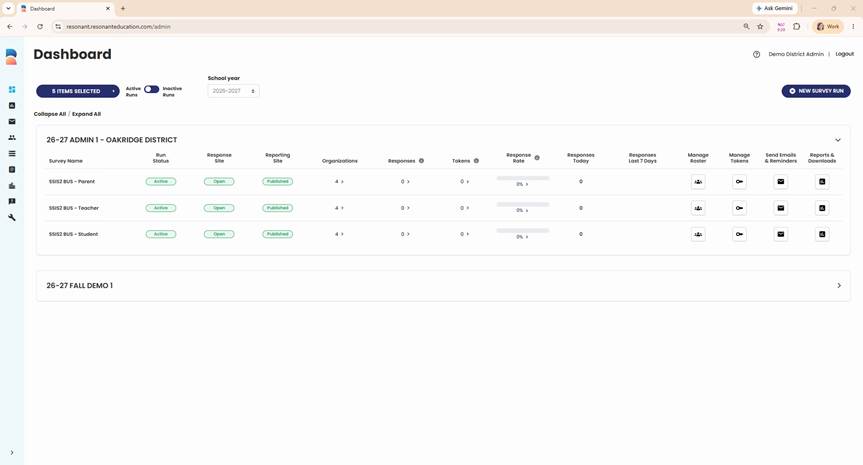
Step 1: Go to your dashboard.
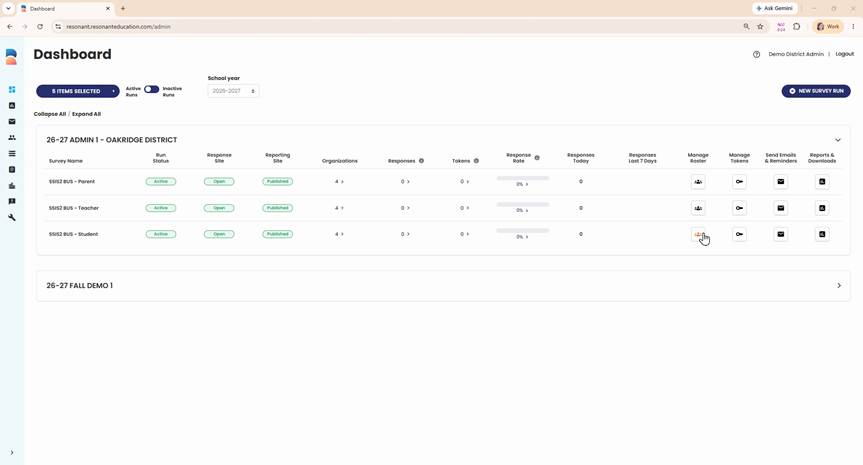
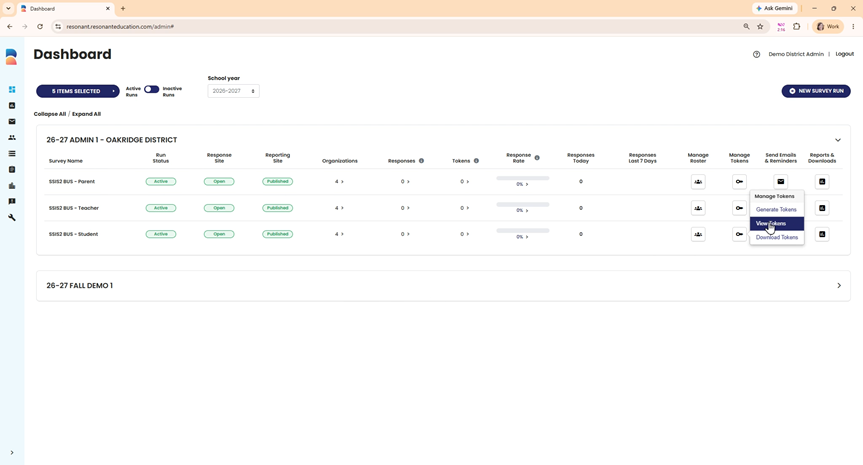
Step 2: Find the survey you want to update. Select Manage Token on that survey's row.
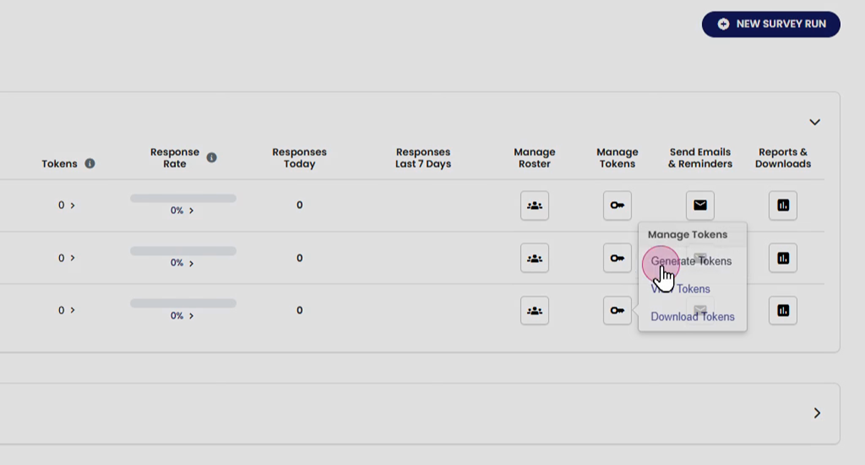
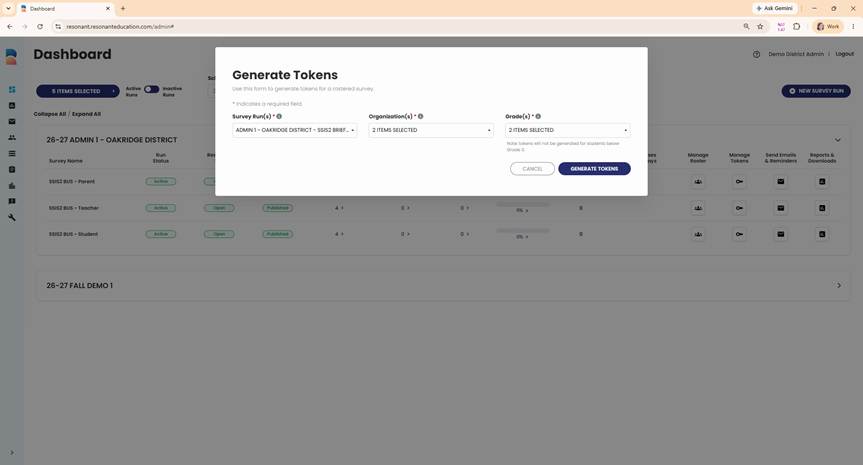
Step 3: Click Generate Tokens.
Step 4: Confirm that your survey run is listed.
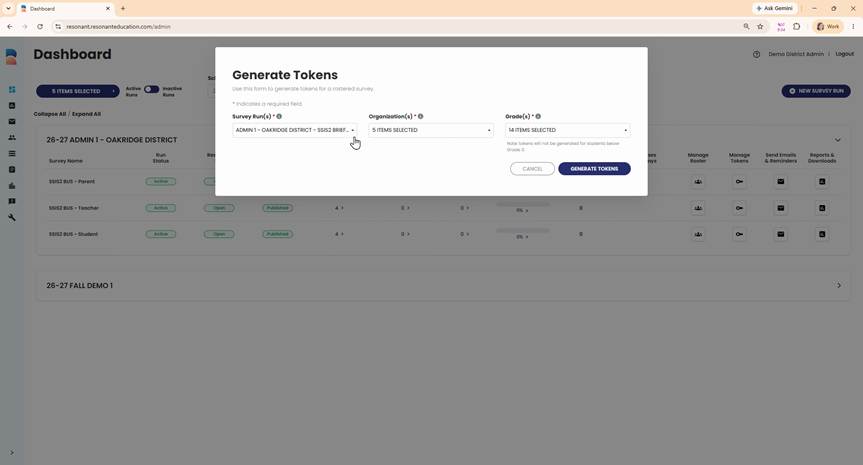
Step 5: Under Organization, select the schools where you recently added new roster information. Uncheck any schools that don't need new tokens.
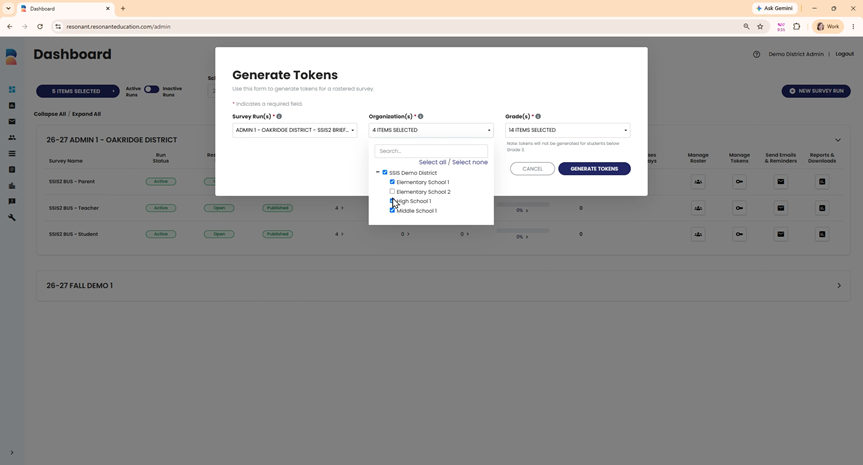
Step 6: In the Grade Level field, select the grades you want to include. Only regenerate tokens for grades where information changed.
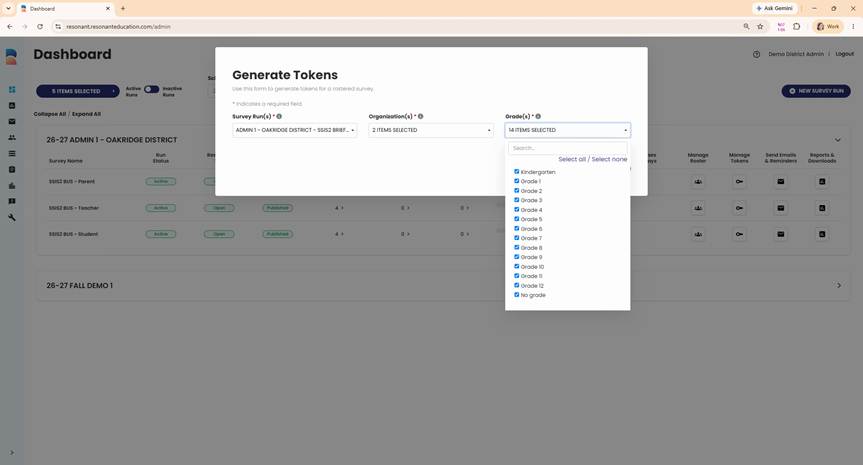
Step 7: For student assessments, tokens generate for grades three and up. Teacher and parent tokens include grades K and up, unless you exclude them.
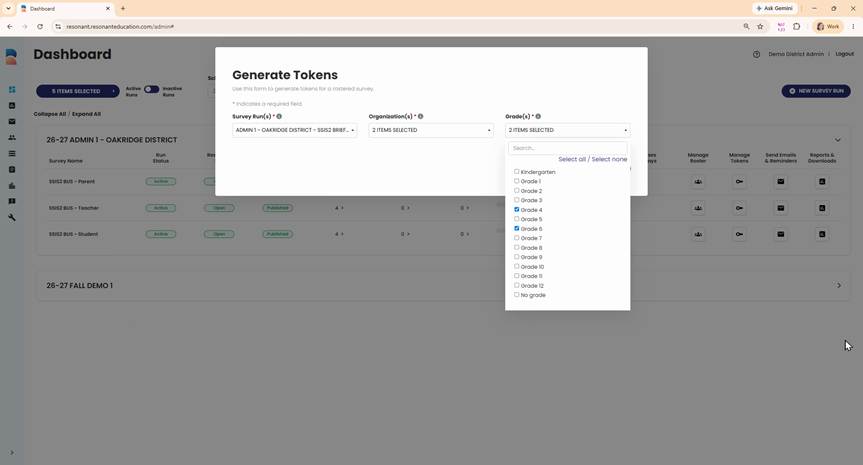
Step 8: Review your selections. The system won't create duplicate tokens. It only generates tokens for users who don't have one yet or missing student-to-teacher and student-to-parent matches.
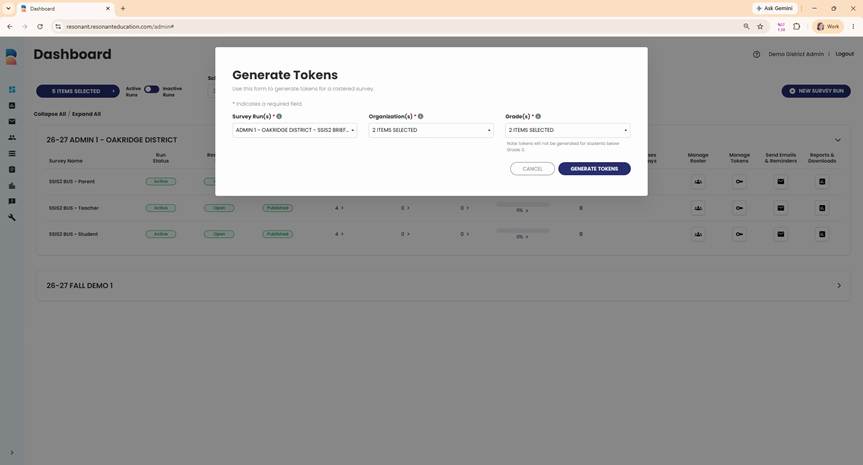
Step 9: When ready, click Generate Tokens.
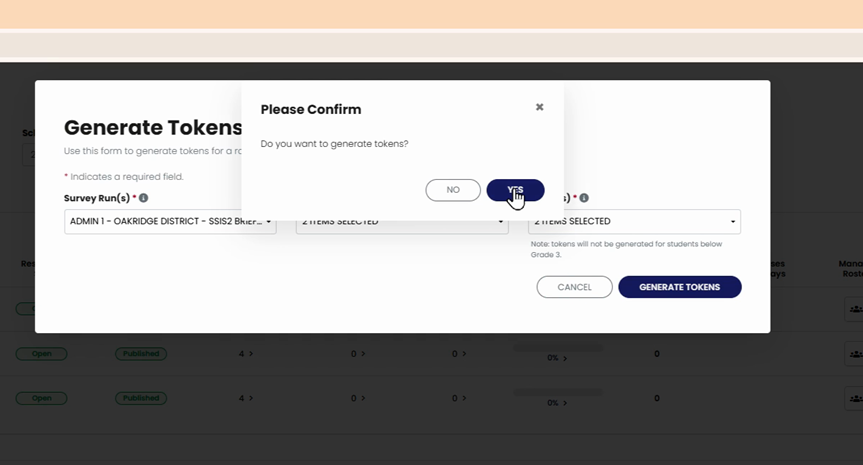
Step 10: Confirm your choice in the message prompt by clicking Yes.
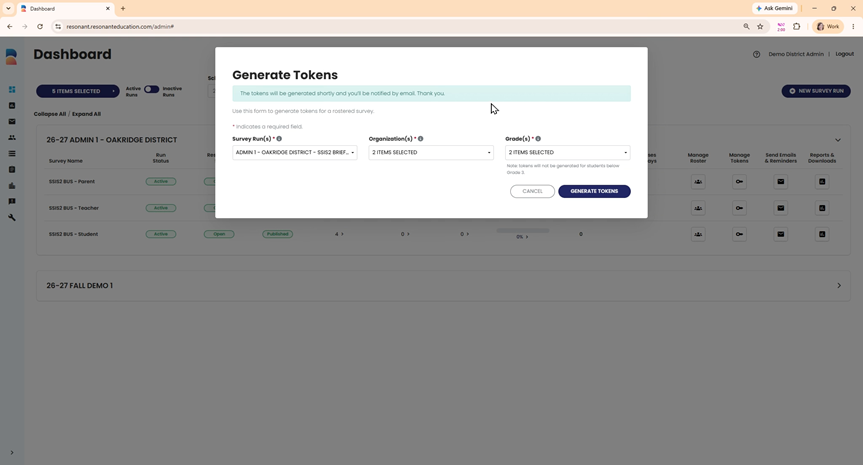
Step 11: You'll receive an email once your request is processed, usually in a few minutes.
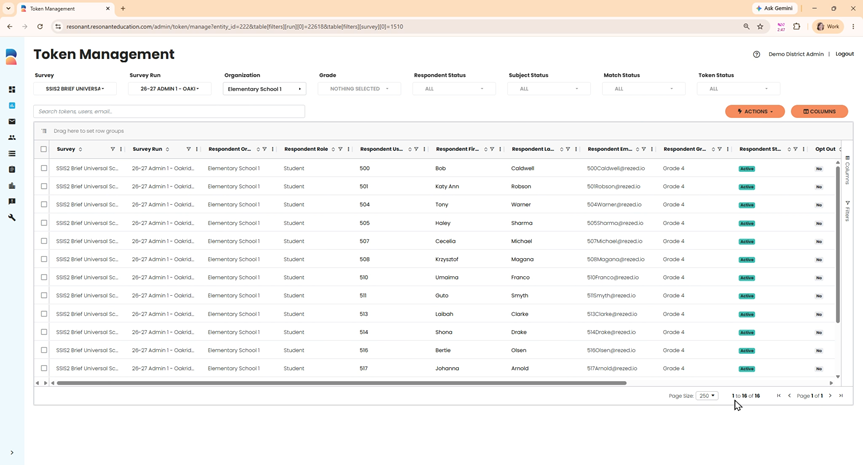
Step 12: Return to your dashboard, select Manage Tokens, then click View Tokens.
Step 13: Confirm the correct number of tokens were generated on the Token Management page.
Generating tokens ensures everyone added to your survey can participate. Regularly updating tokens after roster or match changes keeps your records accurate and everyone on track for assessment.