
Getting Started with the Resonant Education Portal: Admin and Analysis Sides
The Resonant Education portal is split into two powerful areas: Admin and Analysis. Together, these sections help you manage, distribute, and review surveys. Here’s how each side works—and how to move between them for smooth survey management.
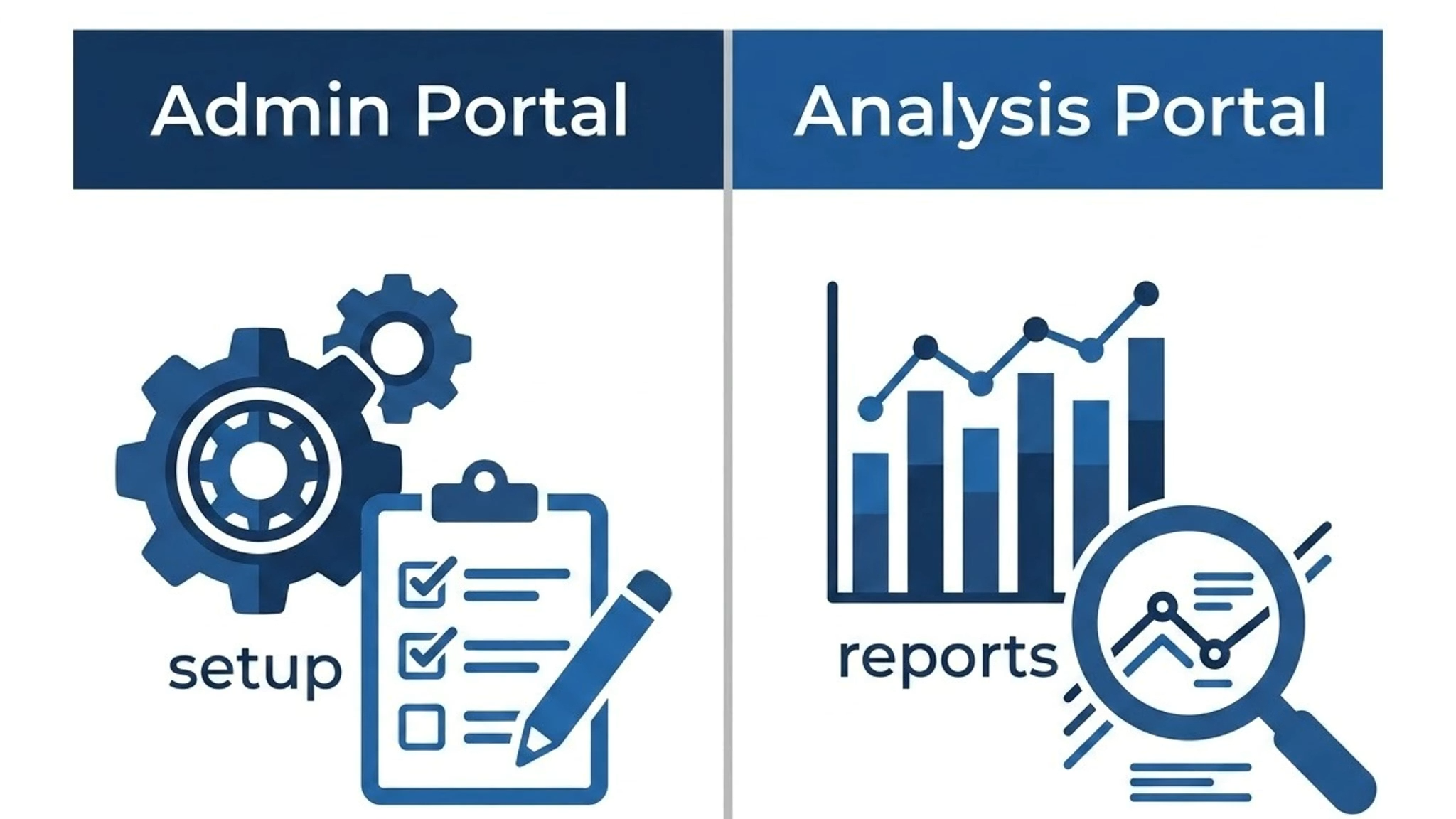
Step 1: Understand the Admin Portal
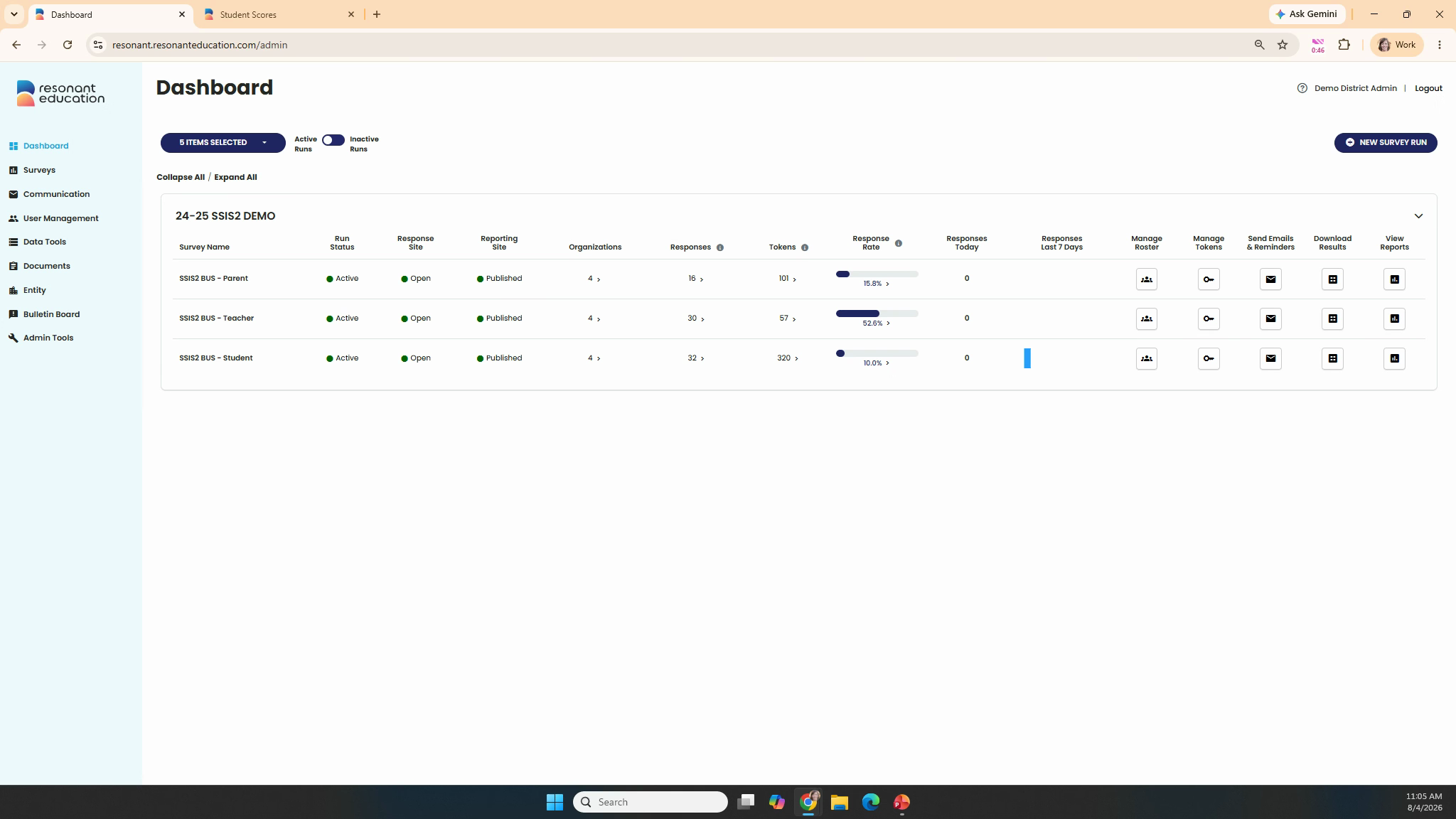
Think of the Admin side as your logistics command center. Use it to enter user information, create survey runs, set survey windows, and generate or track the tokens participants need to access their surveys. We have a library of help videos that guide you through different admin tasks.
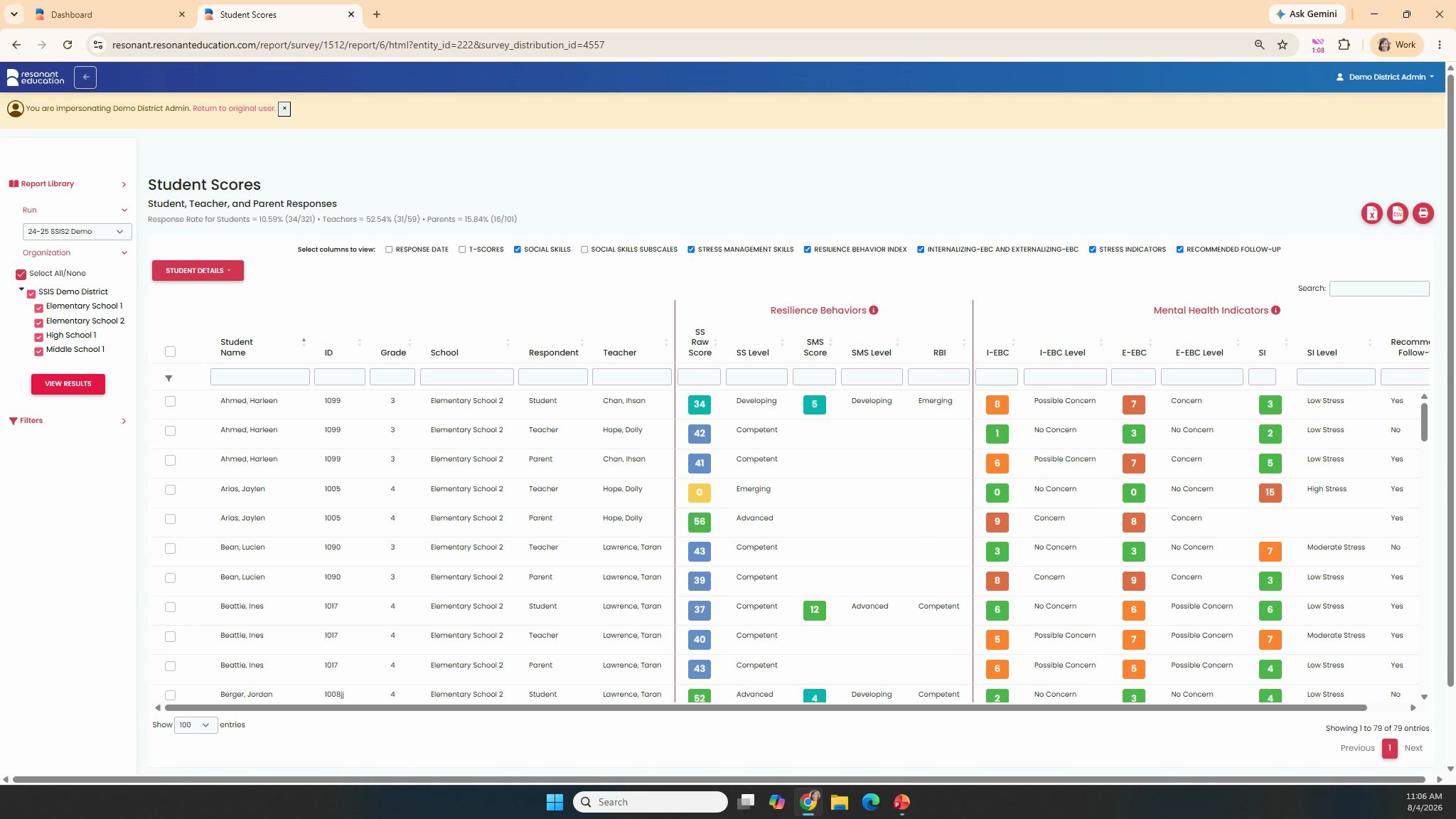
Step 2: Explore the Analysis Side
Once surveys are complete, head to the analysis side to find all of your reports in several different formats. This is where you’ll review survey results for any survey window you’ve set up. Each survey comes with its own reporting suite. For detailed guidance, check out the help videos available for each instrument.
Step 3: Managing Access to Portal Sides
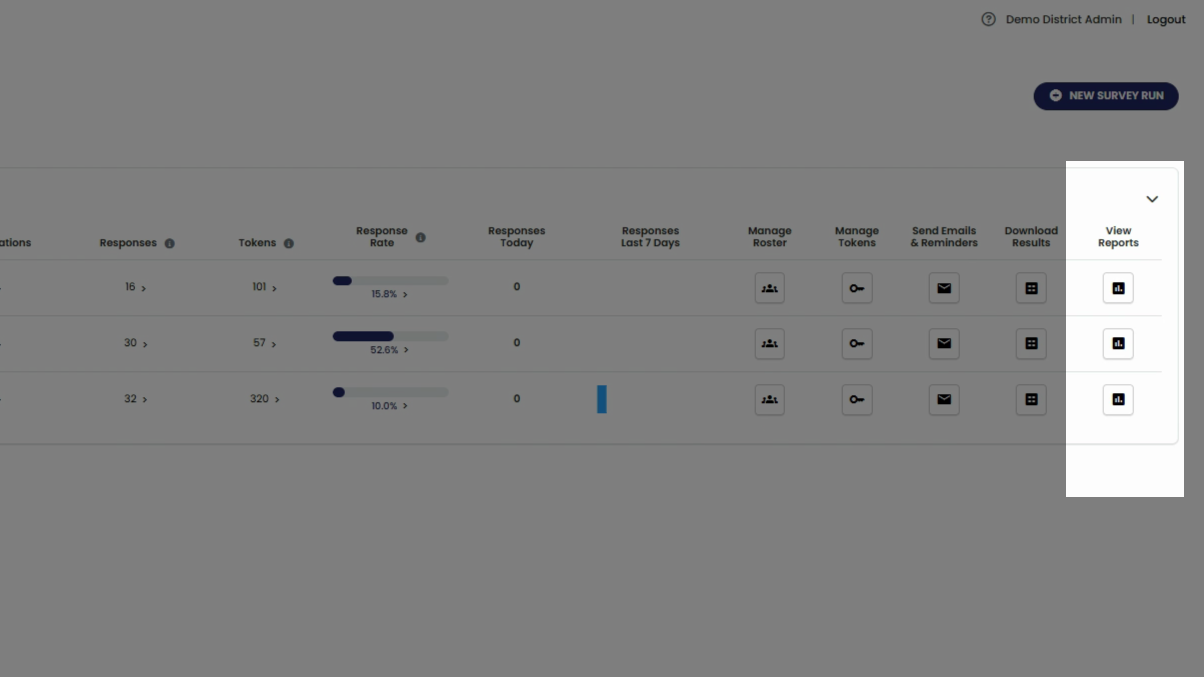
Access to the admin and analysis sides can be given separately or together, depending on your district assignment. If you have access to just one side, you’ll land there right after logging in. If you’re allowed both, you’ll start on the admin portal. To get to the analysis side, click on any View Report button on your dashboard.
Step 4: Switching Between Sides
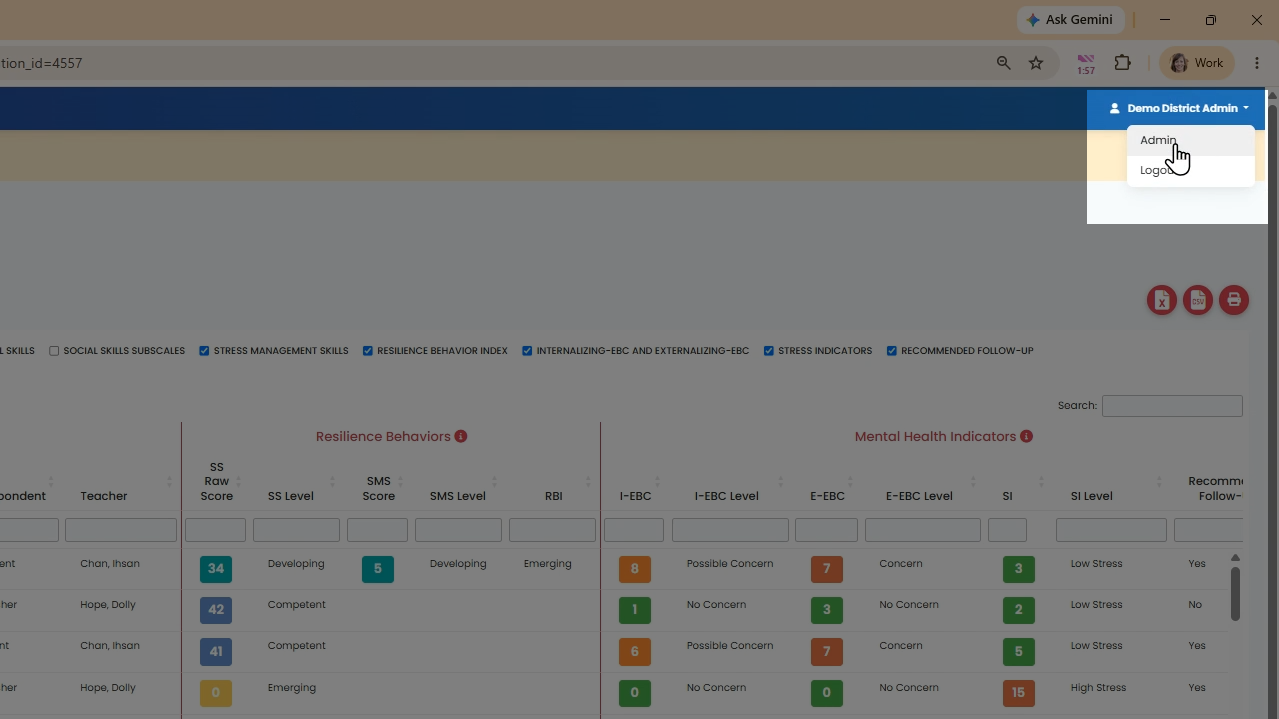
Want to return to the admin portal? Click your name in the top right corner, then select Admin.
Understanding how these two sides work gives you total control over your survey process from start to finish.