
.
Response Rates Page Overview
Stay on top of your survey participation by using the dedicated response rate page. While your overall response rate is always visible on the dashboard, the response rate page gives you a deeper dive into your survey progress.
Step 1: Expand the Surveys menu.
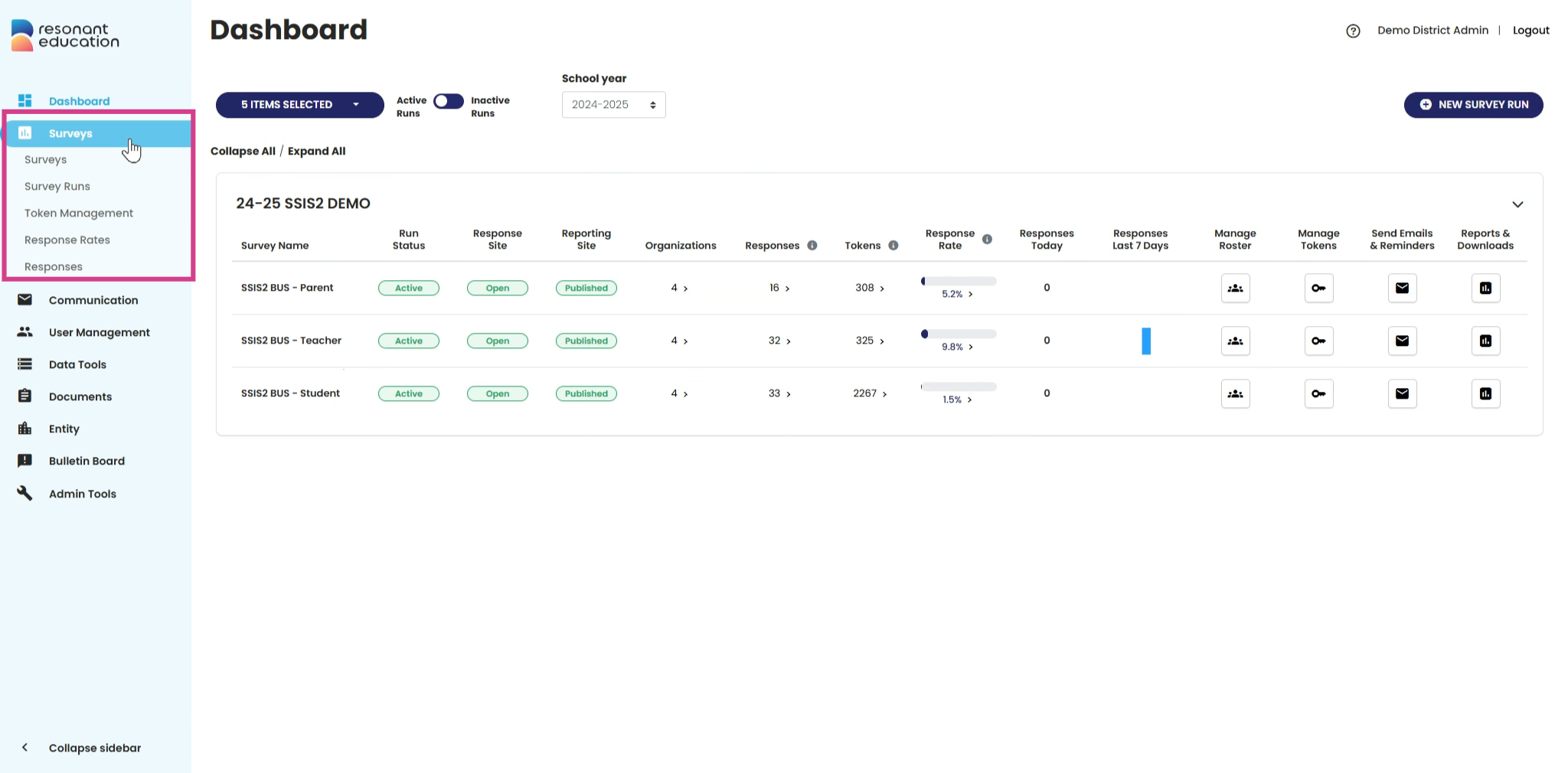
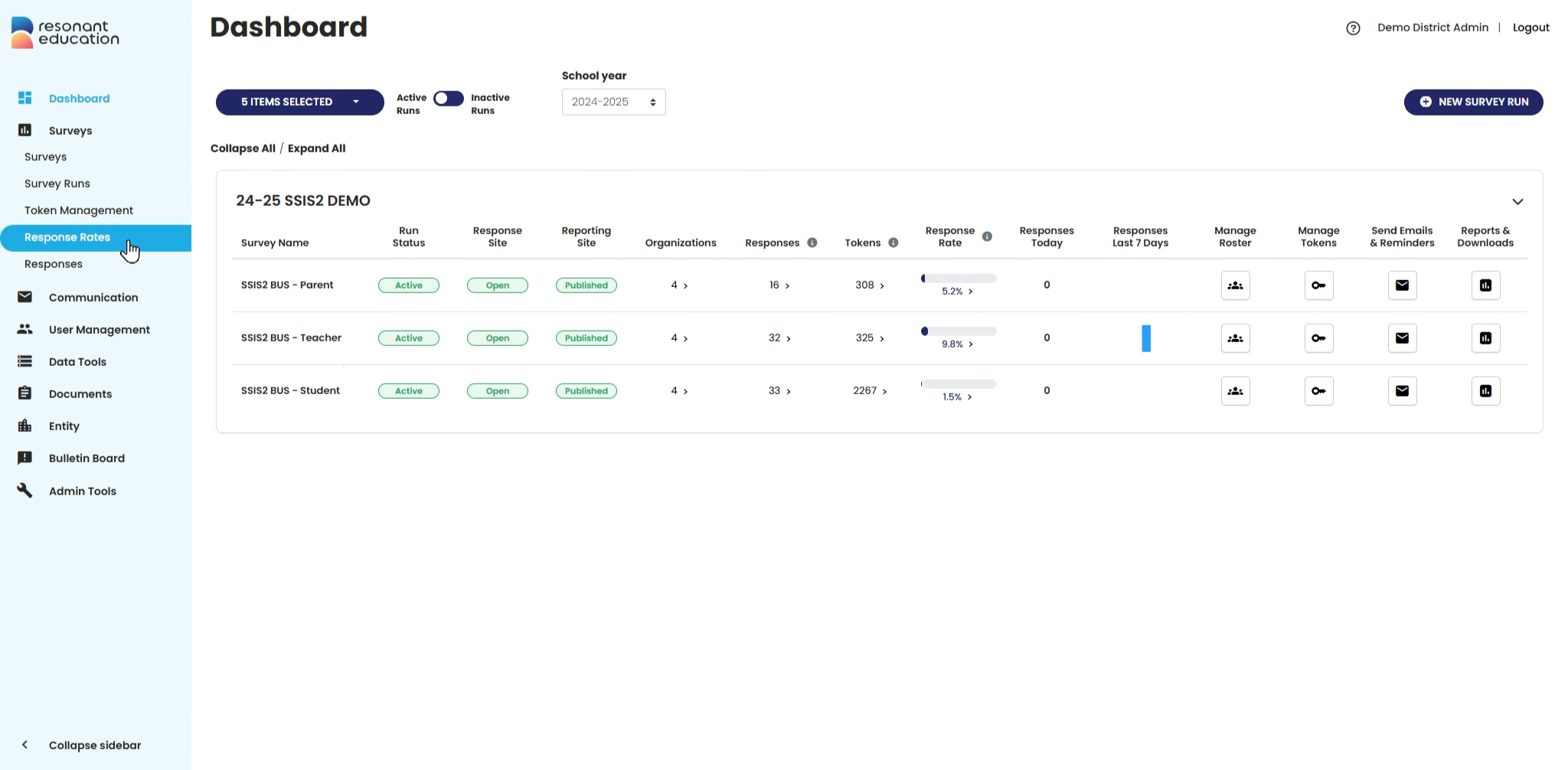
Step 2: Click Response Rates to open the summary page.
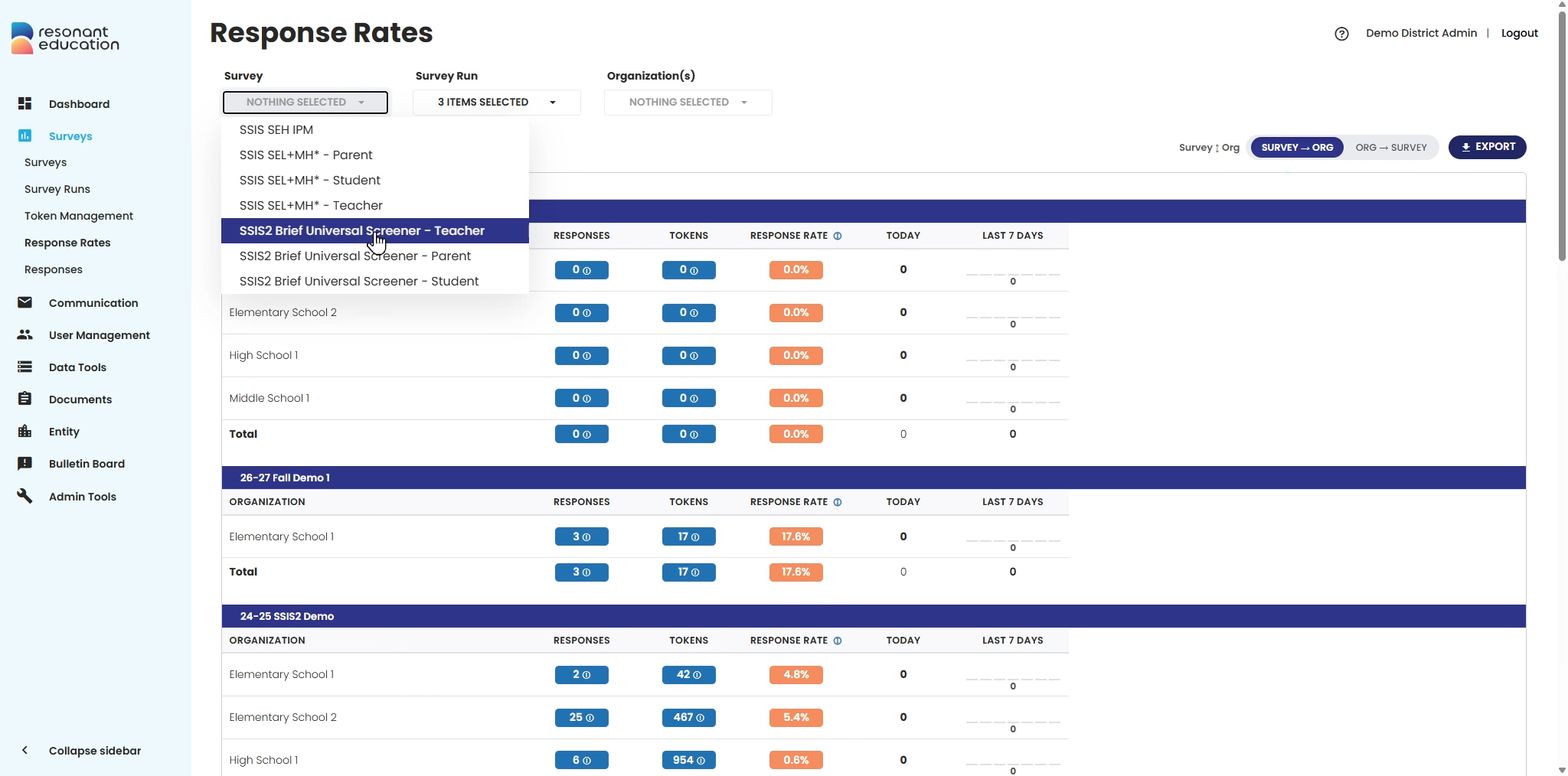
Step 3: Use the filters at the top to select the surveys and survey runs you want to review.
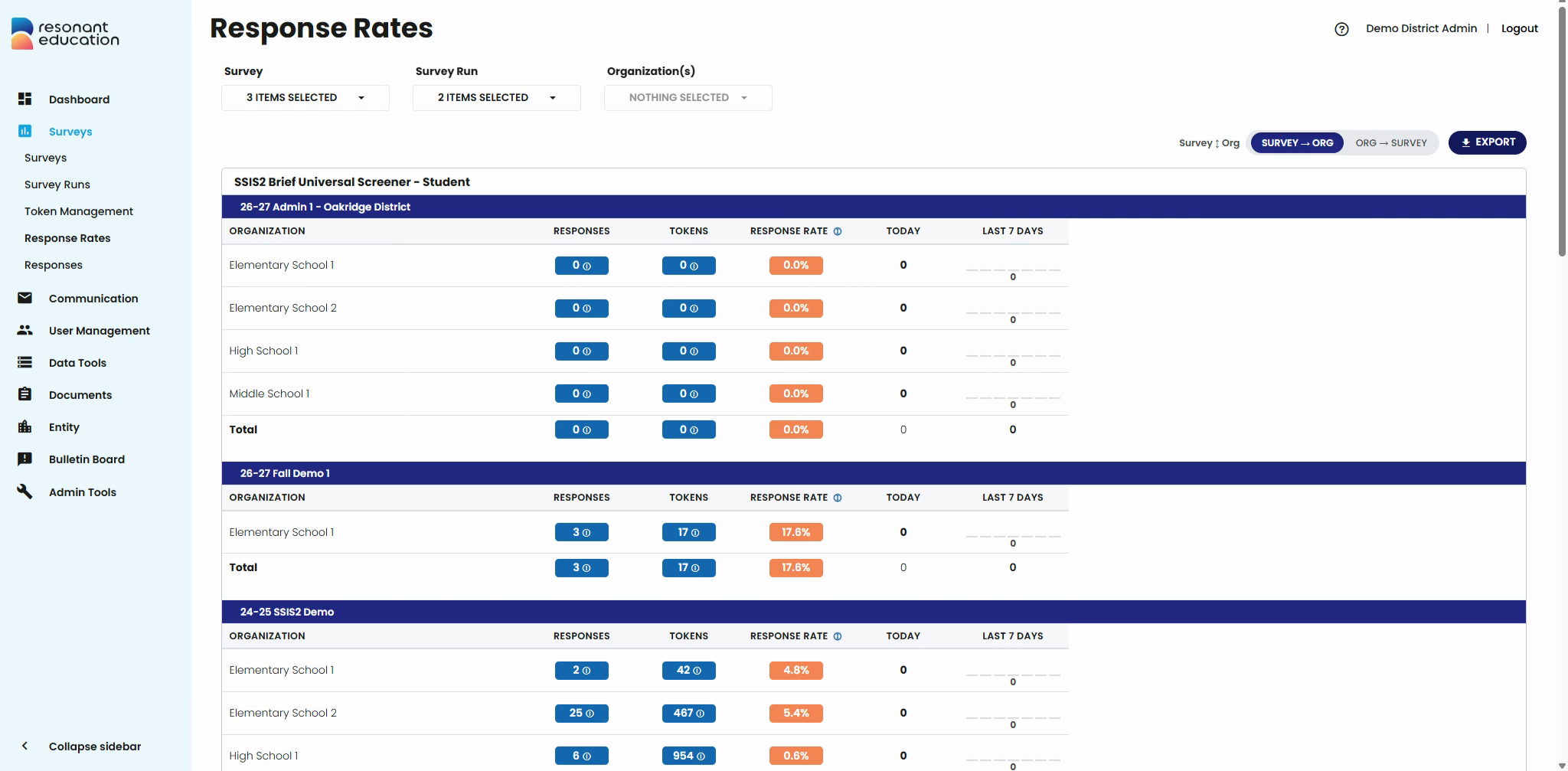
Step 4: Browse the summary table to see your data. By default, you'll see a breakdown by survey, with schools listed underneath.
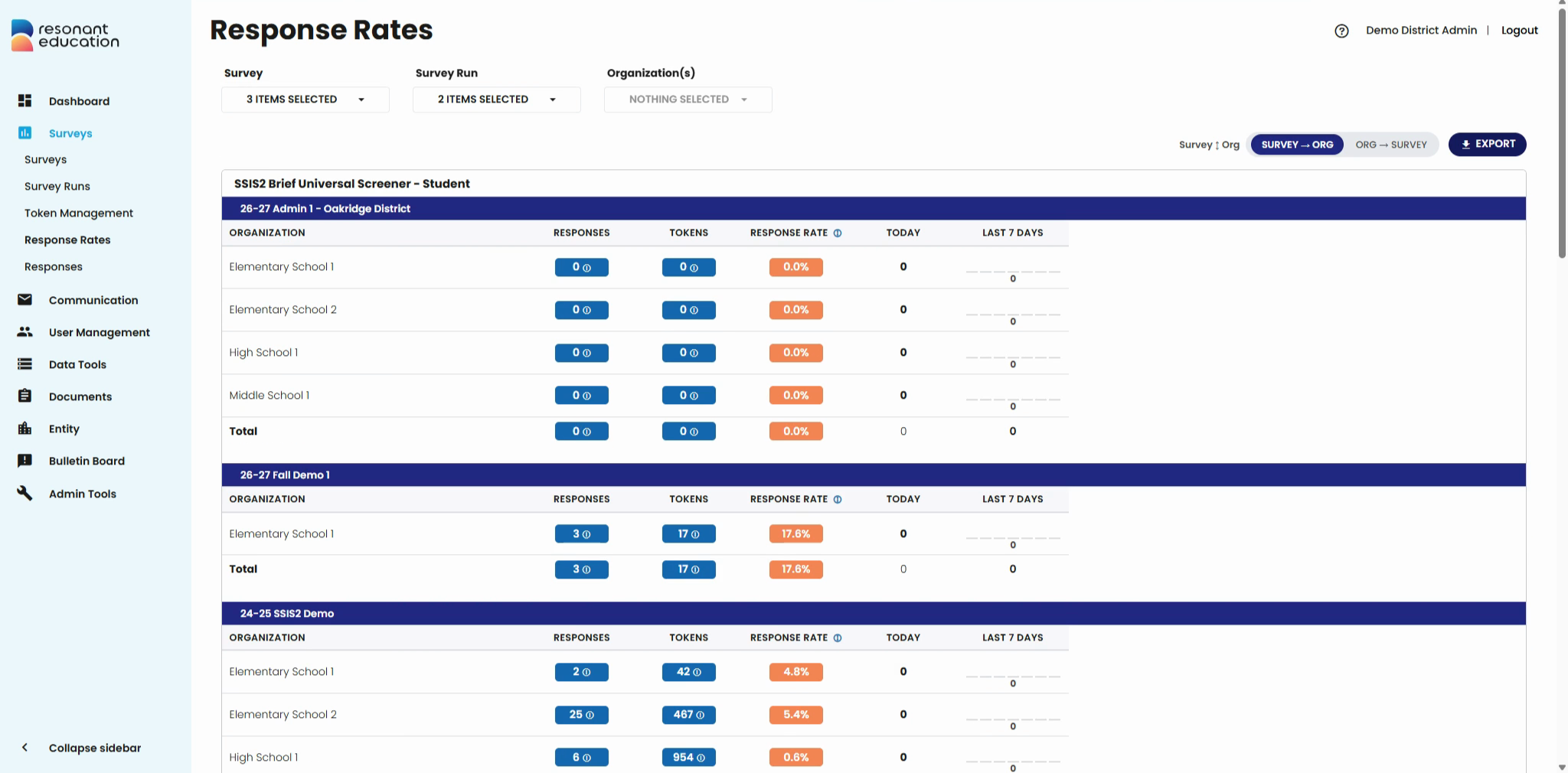
Step 5: Toggle the view if you want to see results by school, with surveys listed underneath.
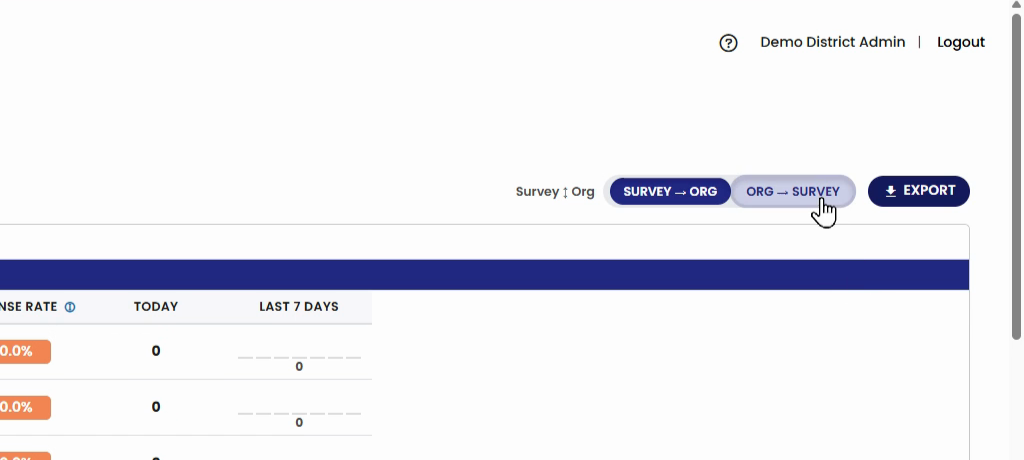
Step 6: Track progress across all schools, surveys, and runs in one consolidated view. Instantly identify which schools have started assessments, which are pending, and follow up as needed.
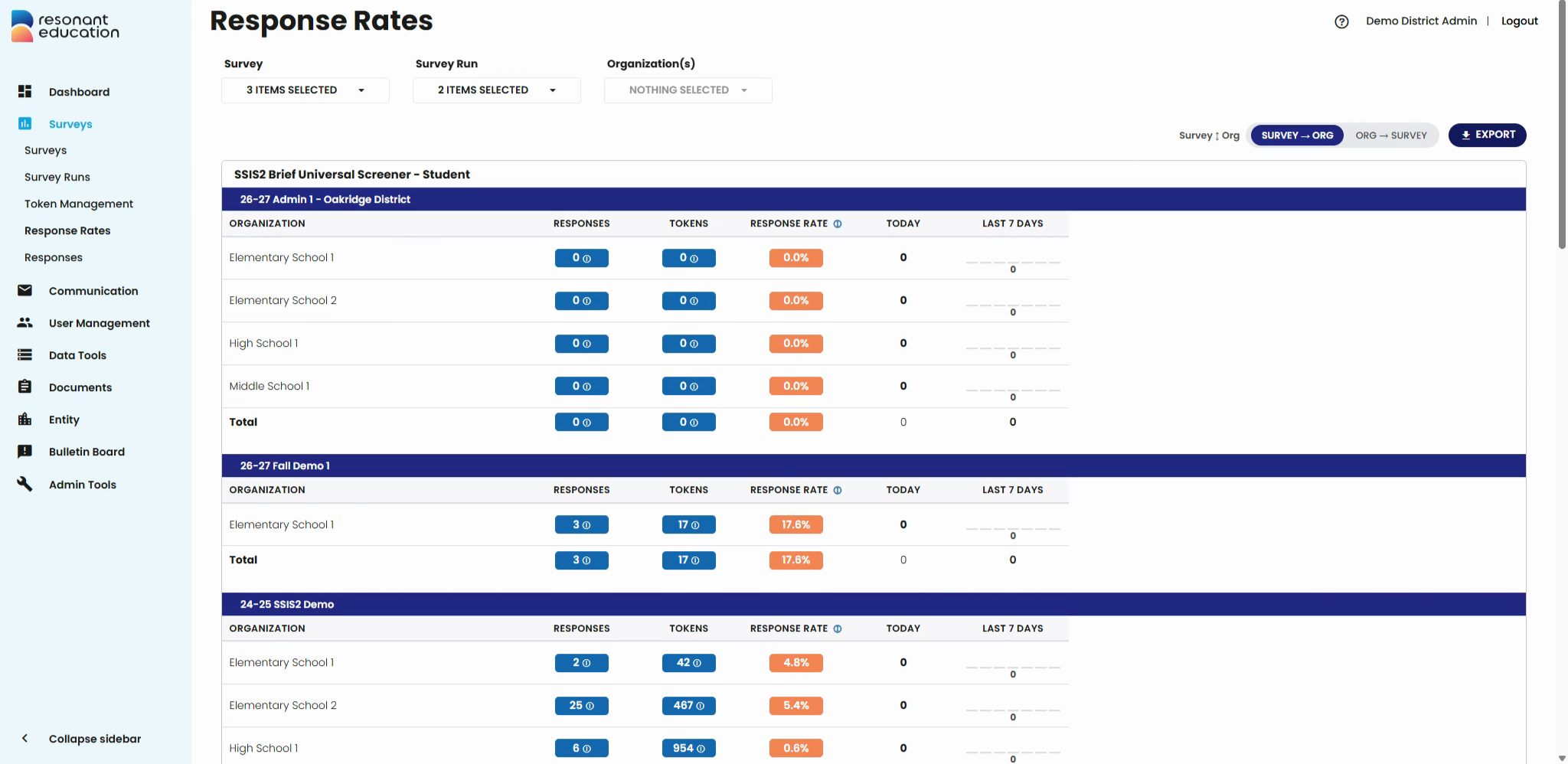
Step 7: Refresh the page anytime to see real-time updates on submissions and participation.
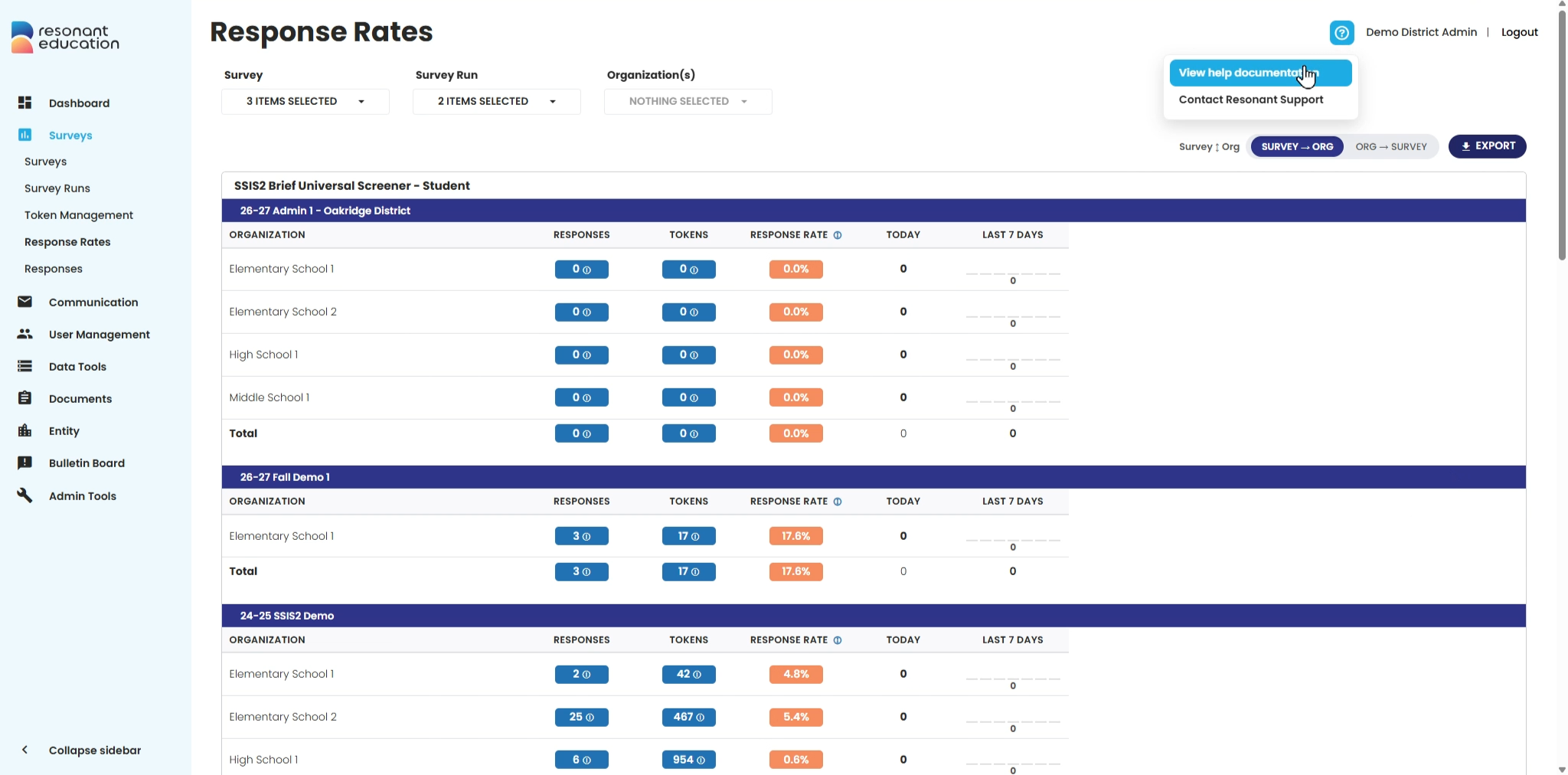
Step 8: Need help or more information? Click the Help icon in the top-right corner to access the knowledge base, video library, or contact support.
The response rate page makes it easy to monitor progress and drive completion, so your survey data stays current and actionable.