
Token Management Overview
The token management page in the Resonant Education system gives you a centralized space to track, control, and organize survey tokens across your organization. Tokens help you verify participation, follow-up with respondents, and streamline survey workflows.
Step 1: Access the Token Management Page
You can access token management in two ways:
From your dashboard, click the key icon under Manage Tokens for any survey. Then select View Tokens.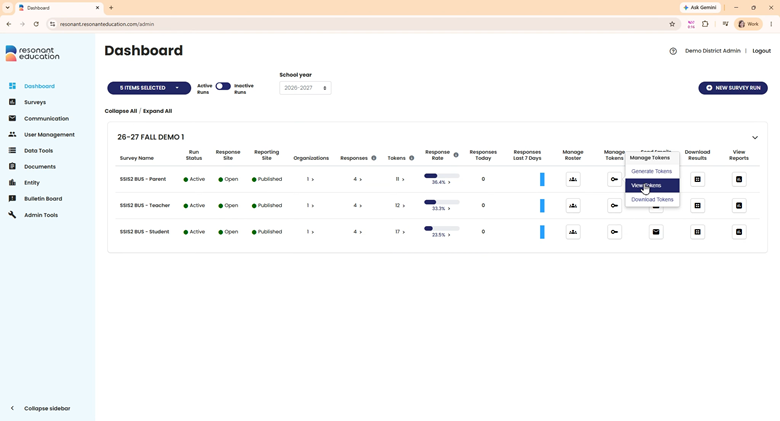
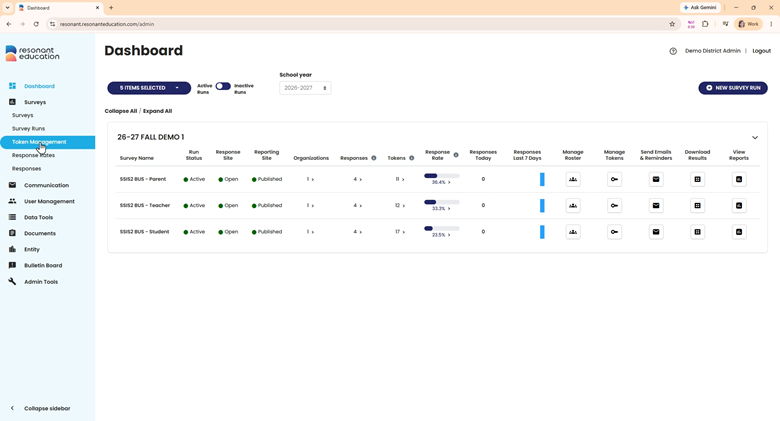
Or, use the main navigation menu. Select Surveys and then Token Management.
Step 2: Review Active Surveys and Tokens
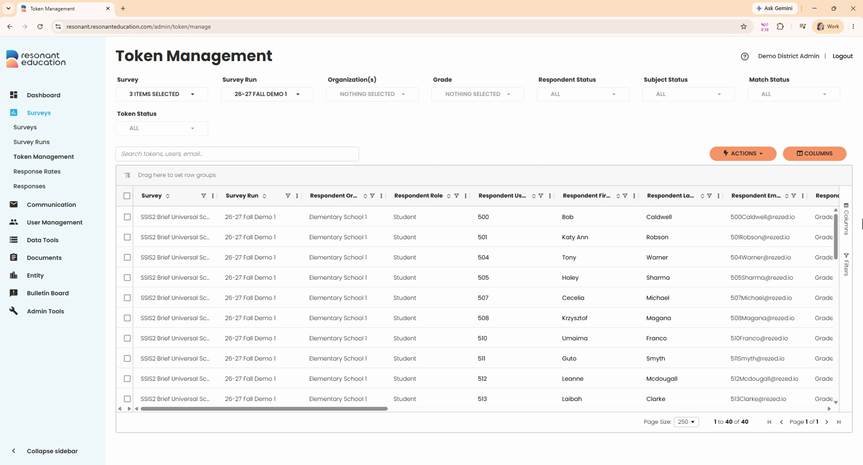
By default, the page shows active surveys from the current school year. This is your central hub to check token usage, status, and manage all active tokens across your organization.
Step 3: Explore Table Features for Managing Tokens
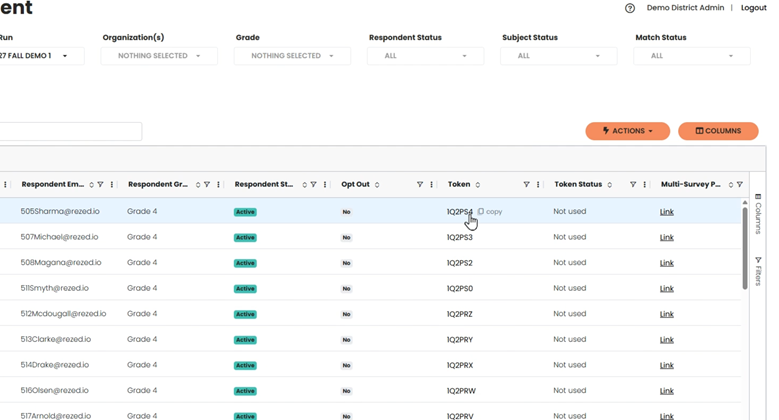
The token management table uses the same functionality as other tables in the portal. Each row represents a survey participant or a token, depending on the type of survey.
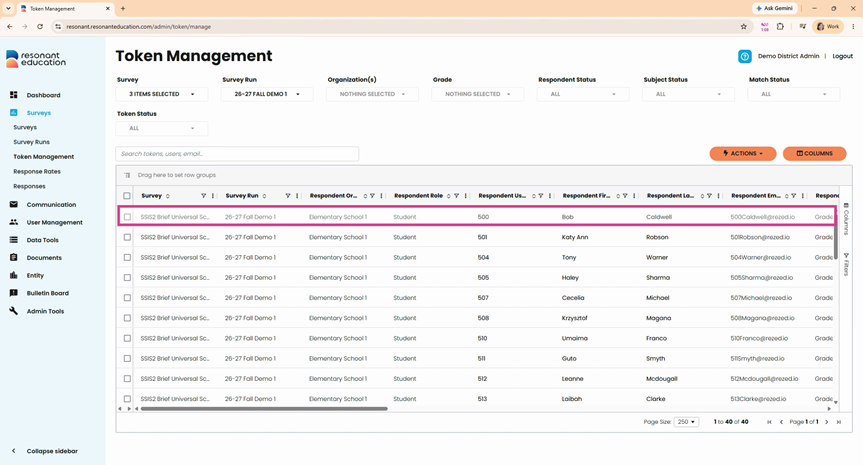
Standard columns include:
- Survey name
- Survey run name
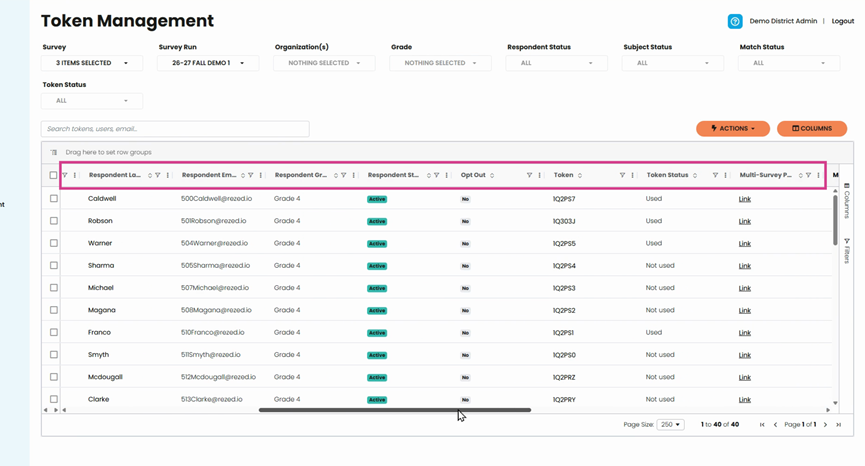
- Respondent information (e.g., name, email for rostered tokens)
- User status, token code, and current status
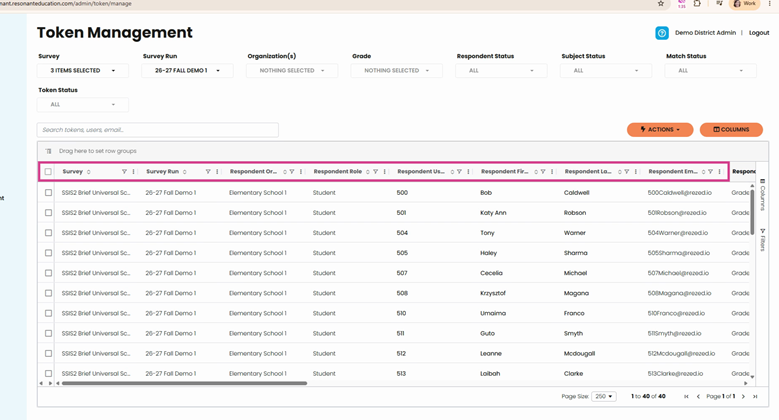
Scroll right to see more fields, like multi-token links for participants taking several surveys at once, or extra information on subject-based surveys.
Step 4: Customize and Filter Your View
Use the controls around the table to tailor your data view:
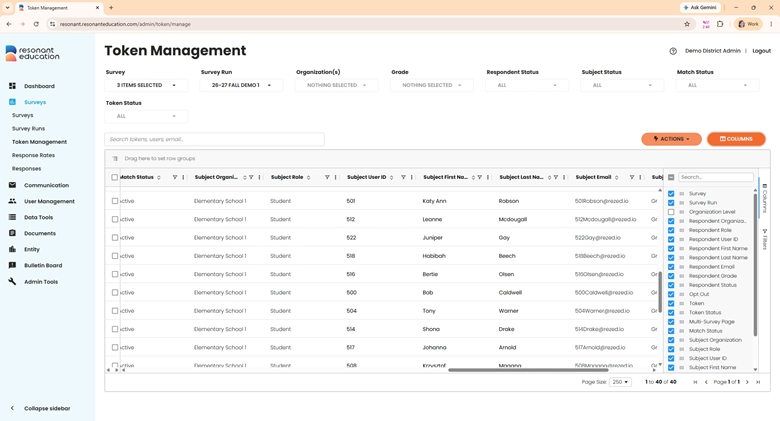
- Open the Columns dropdown to show or hide specific fields.
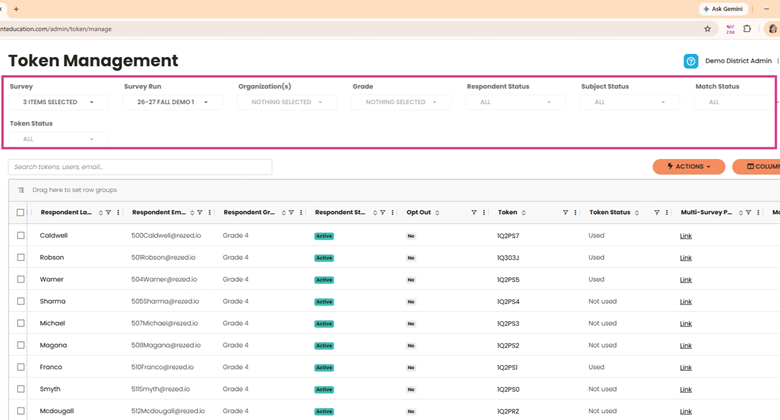
- Use the filters at the top to narrow by survey, survey run, school, grade level, or status (used/unused). There are also filters for subject and match status on subject-based surveys.
- Instantly locate respondents with the search bar—search by name, school, or token code.
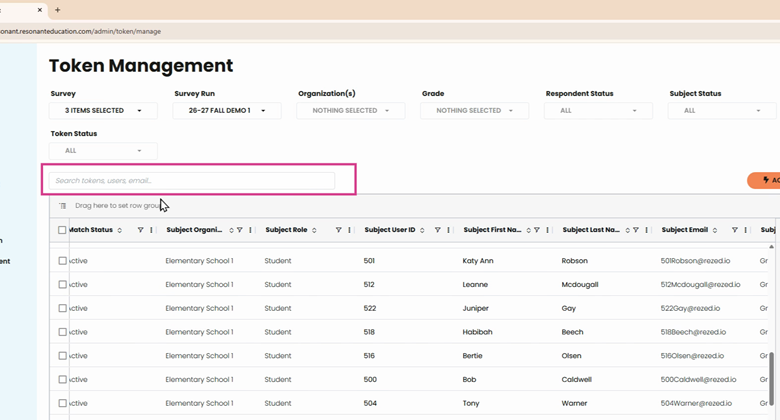
Step 5: Take Action on Multiple Tokens
Select multiple records:
- Check individual boxes or click the top checkbox to select all visible records.
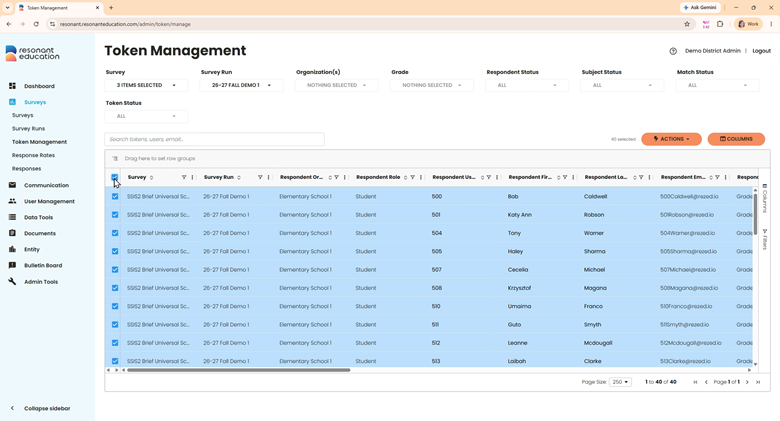
- Use the Actions dropdown to: - Export the table - Download/print tokens - Delete selected tokens and matches - Email token cards directly to teachers for survey coordination
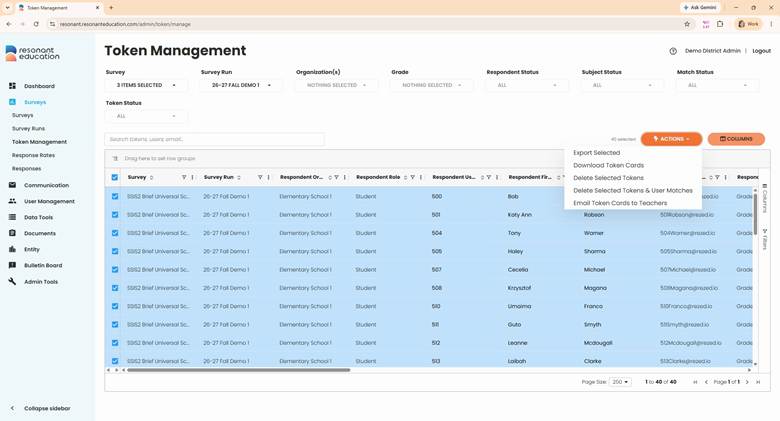
Step 6: Track Survey Completion and Follow Up
Common workflows include:
- Viewing or exporting the unused token list to follow-up with those who haven’t completed surveys.
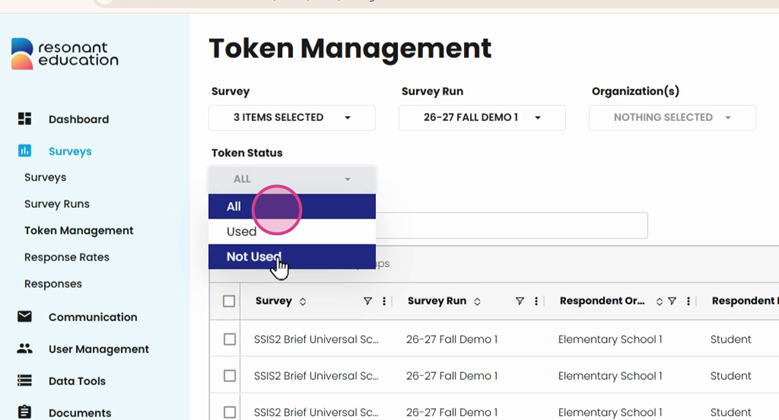
- Quickly copy a respondent’s token by hovering over the token column and clicking Copy—send it directly if someone can’t find their email invitation.
For more advanced instructions on the token management page, or to dive deeper into specific table features or filters, visit our help video library.