
Your Resonant Administration Portal Dashboard
Your Resonant Education administration portal dashboard puts all your survey administration details front and center. Quickly check the status of survey runs, track responses, manage tokens, and easily jump to other sections with just a few clicks. Here’s how to navigate and make the most of your dashboard.
Step 1: Log in to your administration portal
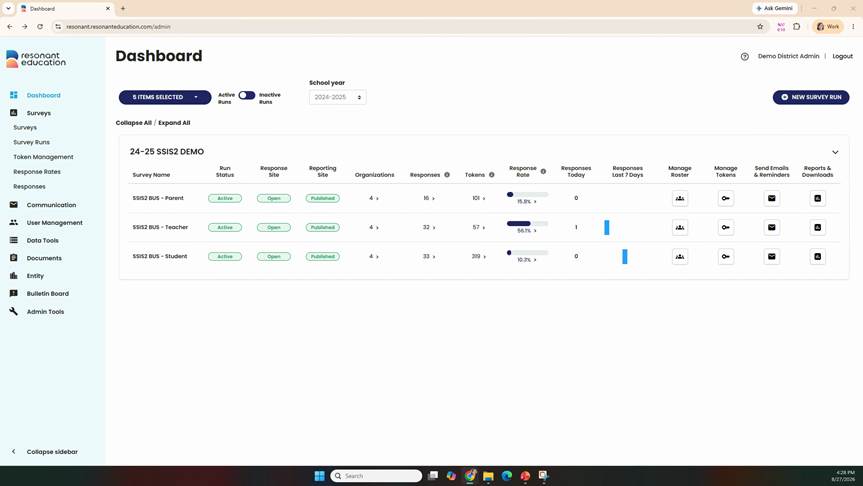
Step 2: Navigate to the Dashboard anytime
No matter where you are in the portal, click the Dashboard button at the top left of the main menu to return to your dashboard view.
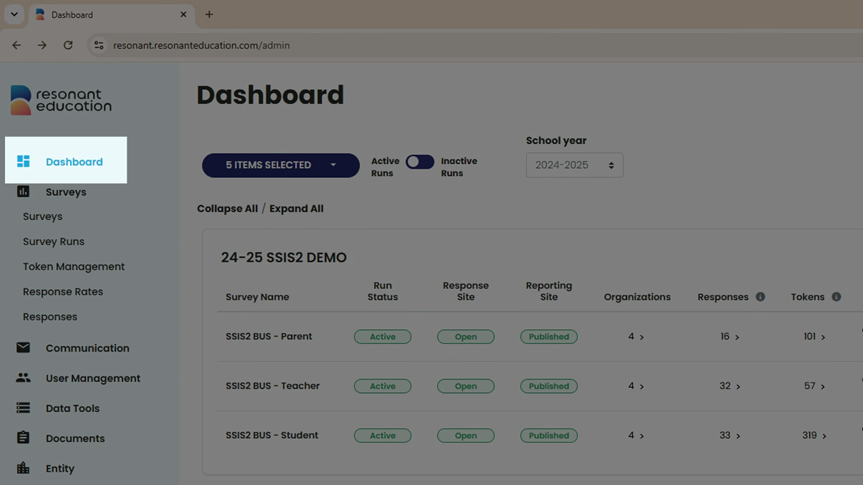
Step 3: Review your active surveys
By default, the dashboard lists all active surveys, grouped by survey run name. Get real-time visibility into the status and progress of your survey administrations.
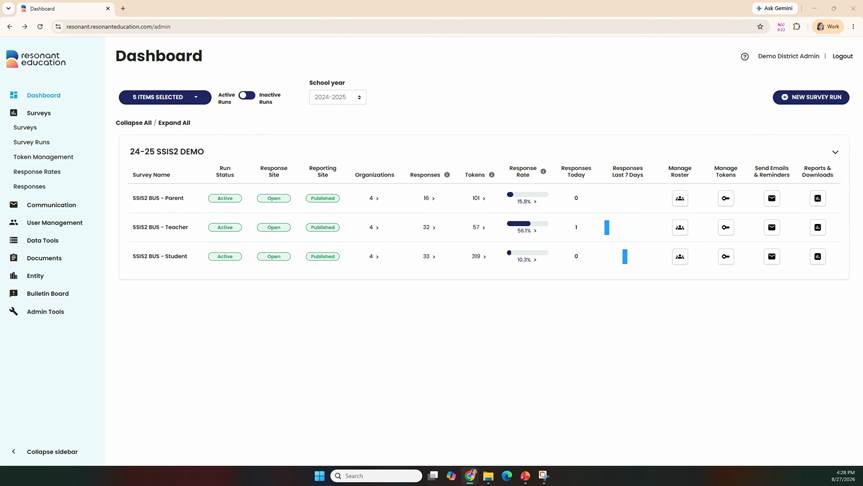
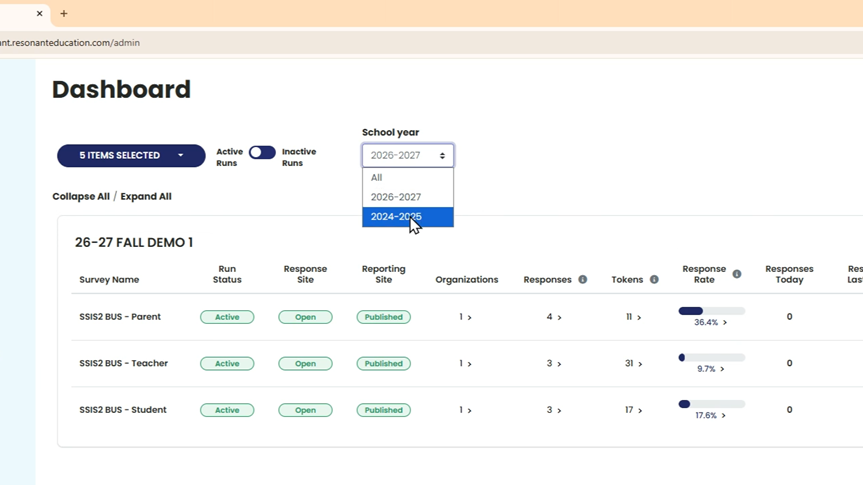
Step 4: Filter survey runs
Narrow your list using the filters for a specific organization,
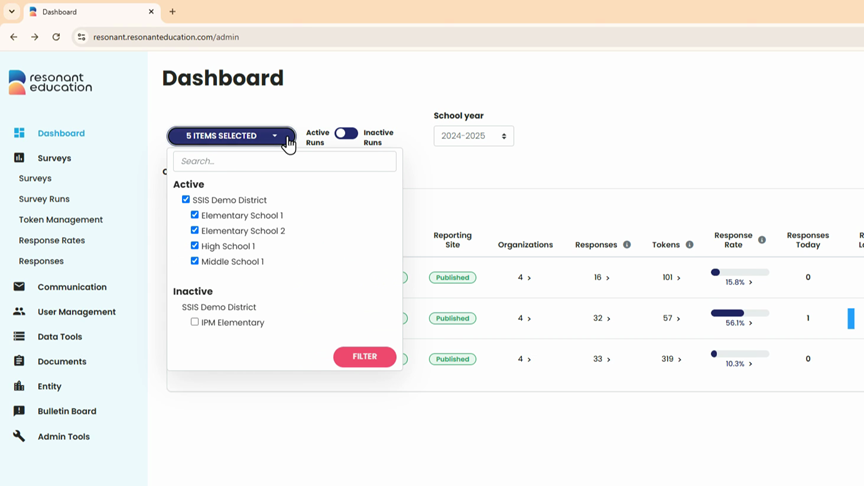
active or inactive status,
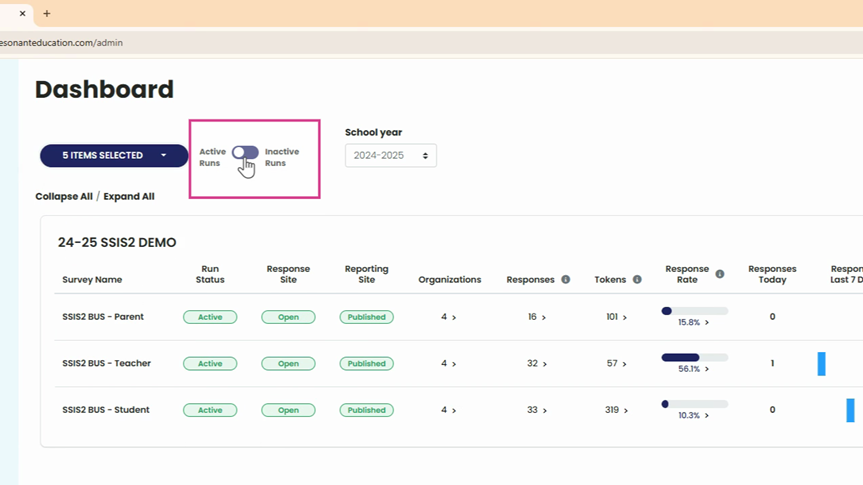
or by year—all years or a single year.
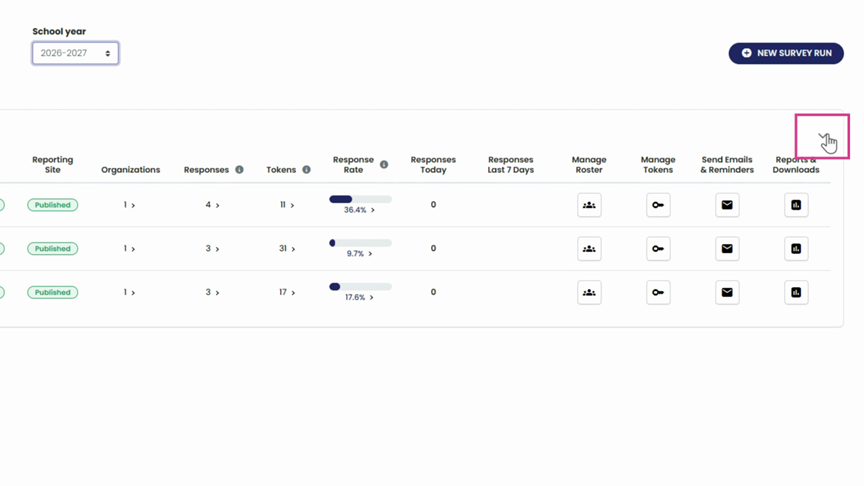
Step 5: Collapse survey runs for a streamlined view
Collapse any survey section to focus on the details that matter.
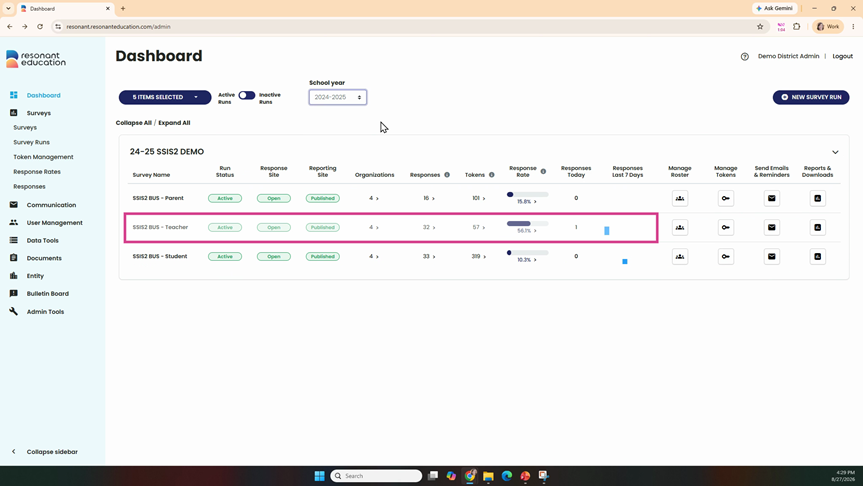
Step 6: Understand what each row shows
Each survey row highlights key metrics: current status, number of participating schools, active response totals, total tokens or links generated, overall response rates, 24-hour submission stats, and trends over the last seven days.
Step 7: Check survey status indicators
A green status for Run and Response Site means surveys are open and accepting responses. If a survey run is closed or deactivated, these statuses turn red, indicating that respondents can no longer submit surveys. If someone tries to use a token or link for a closed survey, they’ll see an error message explaining that the survey is no longer available.
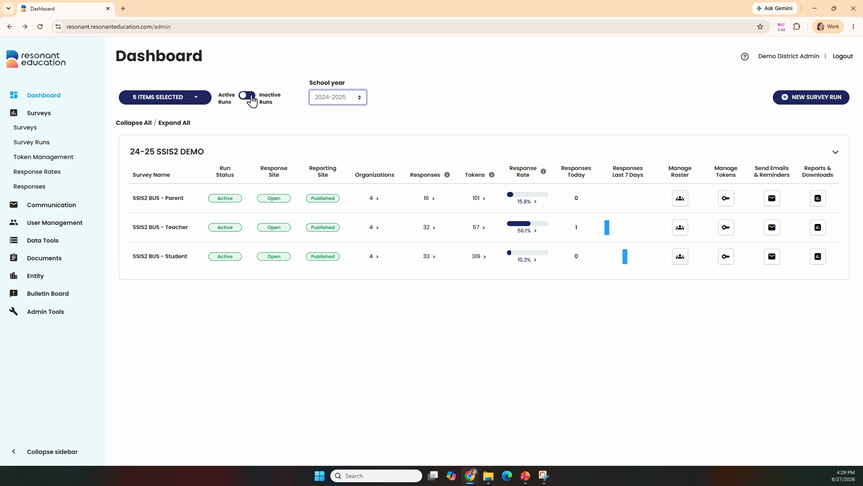
Step 9: Dive deeper into survey details
- Click the number of organizations for a detailed response breakdown by site.
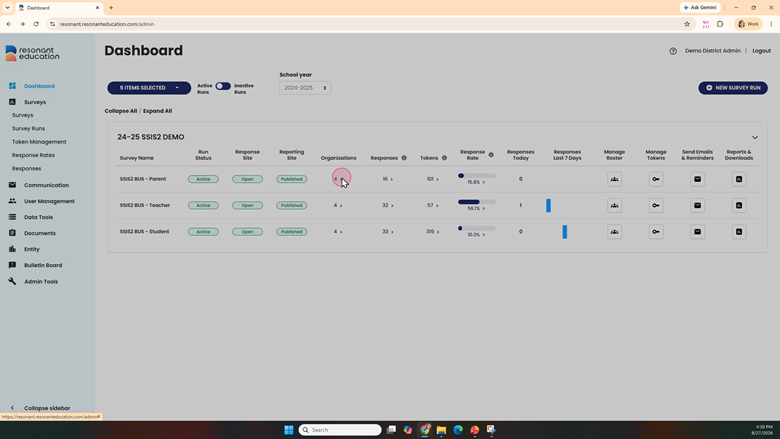
- Click the arrow next to the response count to view and export raw response data (access permissions apply).
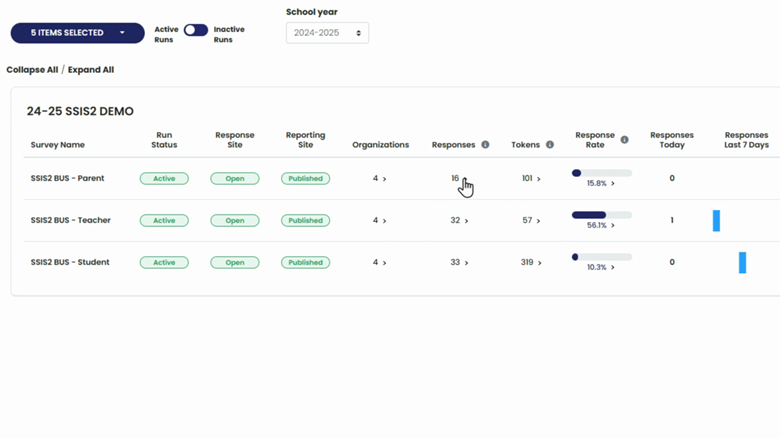
- Click the arrow next to the token count to go straight to token management.
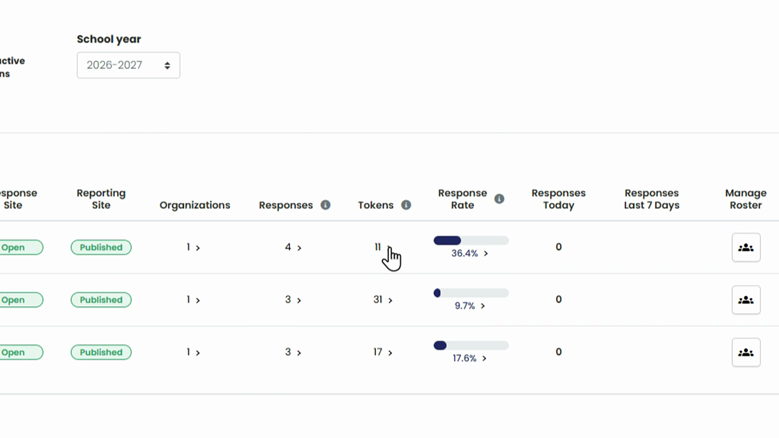
Step 10: Use quick links for common tasks
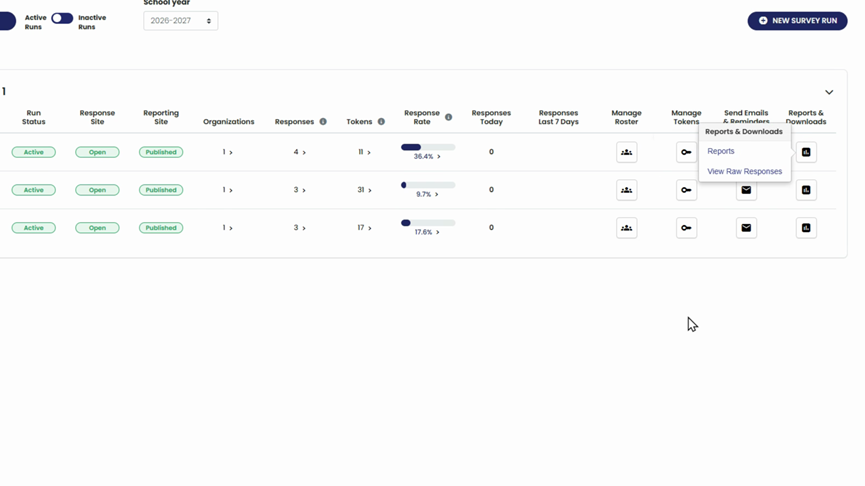
At the end of each survey row, find icons for frequently used survey functions—such as managing rosters and tokens, sending emails, downloading results, and accessing reports.
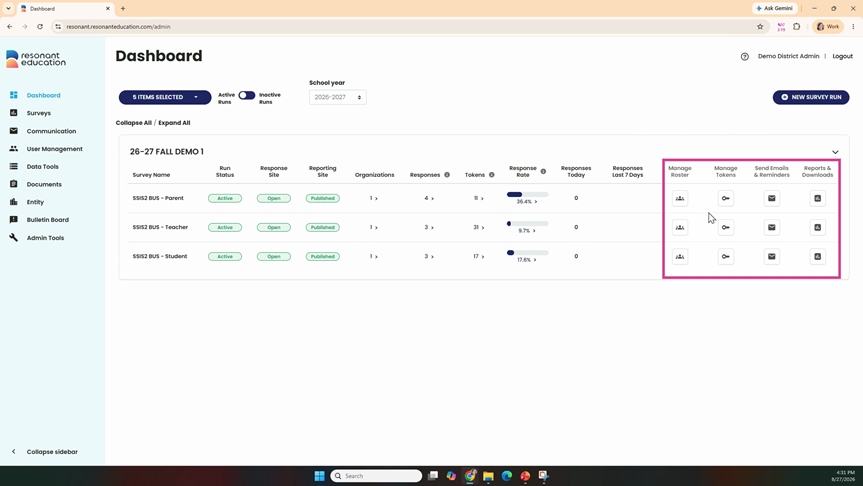
Click each icon to open options and watch help videos for detailed guidance.
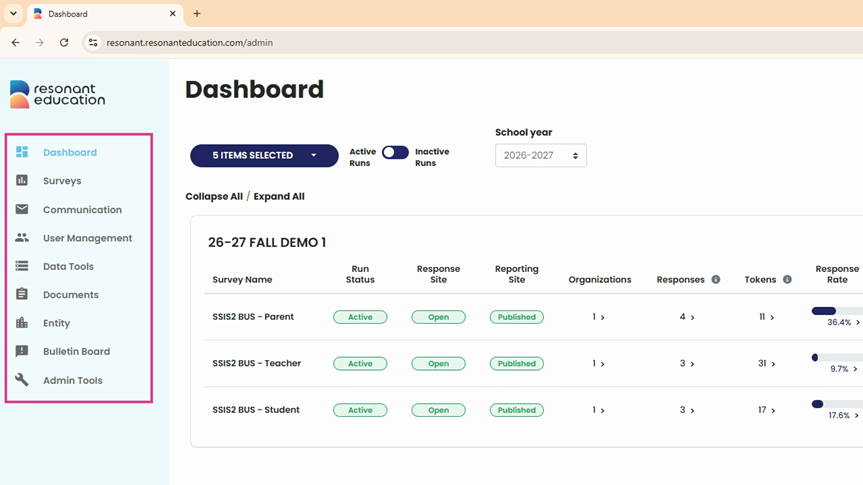
Step 11: Explore portal features using the main menu
Besides dashboard icons, the left side main menu gives one-click access to all major portal sections, including survey runs, token management, response rate tracking, emailing respondents, viewing contact logs, user management, and data import/export tools.
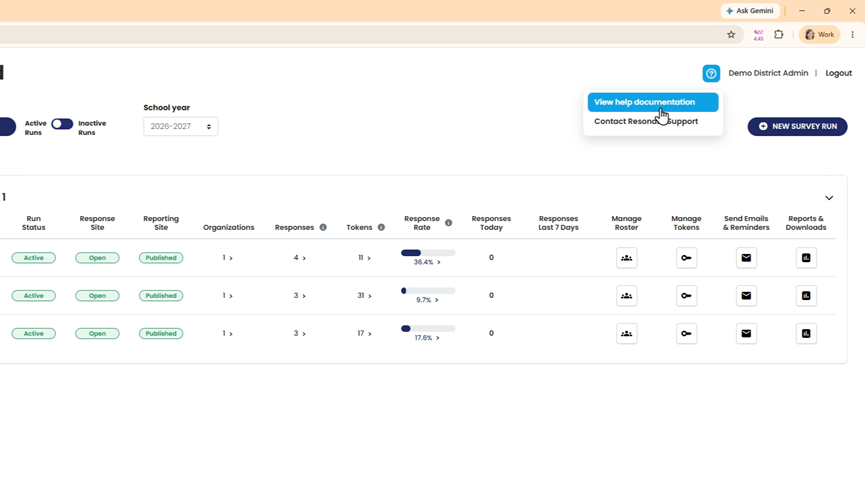
Step 12: Find additional resources
Access the help video library and how-to documents anytime via the portal for guidance on every feature.
Your Resonant Education administration portal keeps all your survey data and tools in one place, making it easy to find, manage, and act on the information you need. Dive into each area with confidence and make your survey administration effortless.